> ## Documentation Index
> Fetch the complete documentation index at: https://docs.qparser.cloud/llms.txt
> Use this file to discover all available pages before exploring further.
# 🍀 Welcome to QParser
> It's your journey to started with QParser as beginner and just follow the simple step to understand how it works.
## 🐚 Installation step
* **QParser Key**: The key that use for login to website
* **API KEY**: The key that use for login to client
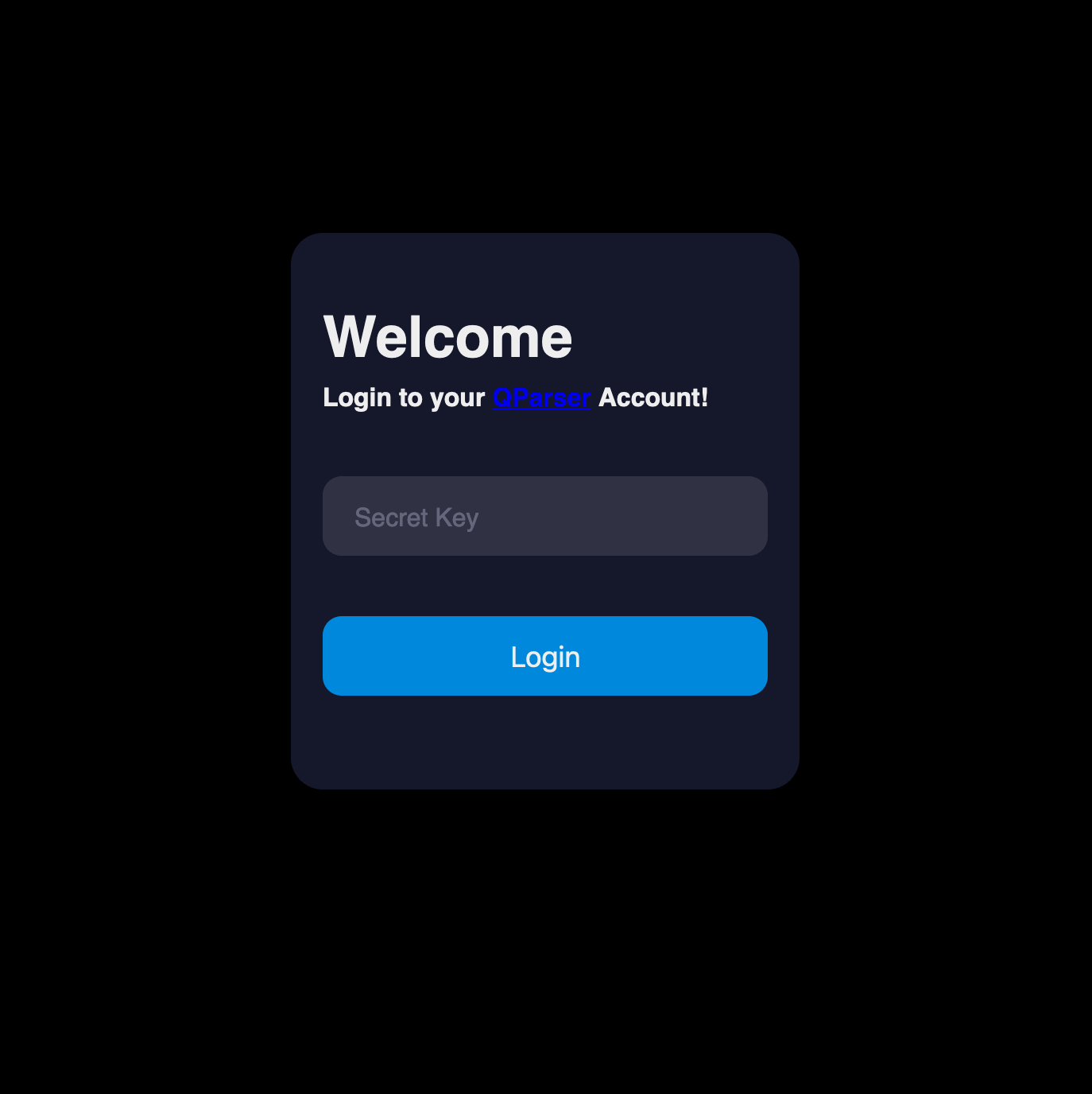
You need the **key** to login on the website, please check it on your **Mailbox**
After that visit [https://qparser.cloud/login.php](https://qparser.cloud/login.php) and you can paste your key on the input text
 After you logged in to the dashboard, you will see there 2 button to download the **client** and **auth file** for automatic login.
You can click both button to download the files
After you logged in to the dashboard, you will see there 2 button to download the **client** and **auth file** for automatic login.
You can click both button to download the files
 After you download both file, you can run the client.
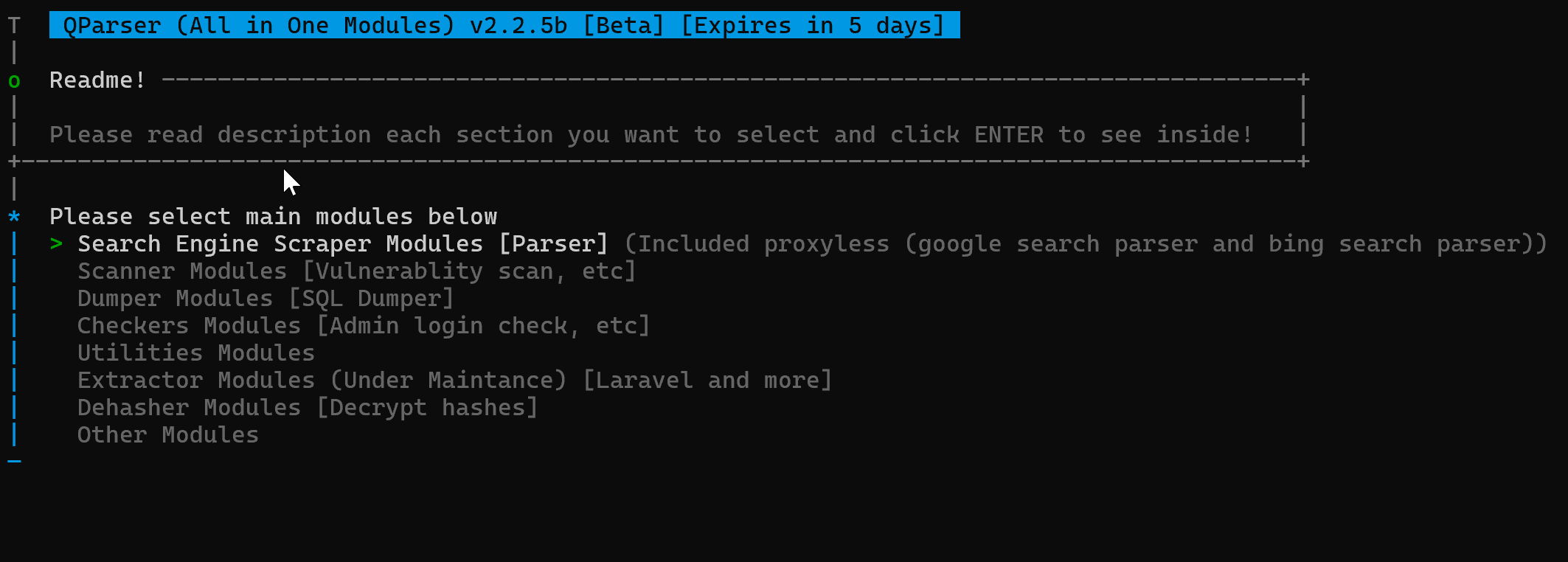 Your **QParser client** is ready to be use!
## 📜 QParser Knowledges
Insert content here
Your **QParser client** is ready to be use!
## 📜 QParser Knowledges
Insert content here